
New in full access
Pearson VUE rehearsal Beta
Walk a Pearson-style certification sitting. You see how the room check works, and you practice the test screen before the real exam.
- Desktop only
- AWS, Cisco, CompTIA, Microsoft, and GitHub
- Not the real Pearson VUE exam
What you practice
-
OnVUE check-inYou walk the identity checks that happen before the questions start. This practice does not launch the secure browser. You type any sample code to continue. It is not a Pearson VUE code, and it is not sent anywhere.
- Agreements You confirm a clear desk, no headphones or smartwatch, and that you will stay facing the monitor.
- Webcam You practice showing both ears, both wrists, and the desk surface.
- Sample code Any code lets you continue. It is not checked.
-
Room and desk rulesYou see what the workspace has to look like, and what gets in the way. These are the checks a remote proctor makes.
- On the desk Laptop only. Papers, a phone, and headphones are the examples to clear away.
- In the room A watch, food, a bag, or a second monitor are the kinds of things the examples flag.
- While you sit Do not speak out loud, cover your mouth, or look away from the monitor.
-
Phone checkThe computer shows a QR code. The phone opens a Testimea page and walks the photo angles, one screen at a time. You can continue on the computer without the phone.
- Face Good light, no glasses or hat.
- ID Front, then back. All four corners visible, with no glare.
- Desk From the front.
- Room Left side, right side, then behind you.
- Finish Put the phone out of reach and return to the computer.
-
Example photosEach phone step shows a good example and a poor one. Face, ID, and the room, shown as examples. No photo of yours is taken or saved.
- A good photo A clear face, a readable ID, an empty desk, and an open view of the room.
- A poor photo A dark or covered face, cropped or glaring ID, papers and headphones on the desk, or a second monitor behind you.
-
Waiting for the proctorOn exam day a proctor reviews the photos, and you wait in a queue. Other candidates may be ahead of you. Most exams start within about 15 minutes. This practice has no queue and no proctor. You check the same items yourself, then continue as soon as you agree.
- Stay at the computer The webcam and microphone stay on.
- Another look If a photo needs another look, the proctor uses chat or calls. The number may look unfamiliar.
- Show the camera The proctor asks you to show both ears, both wrists, and the desk surface.
- If nobody calls If nobody reaches you within about 30 minutes, the connection may have dropped.
- The exam starts When the checks are done, the proctor starts the exam. The webcam, microphone, and screen stay available to the proctor until you submit.
- In this practice The last button stays off until every item is checked. It stands in for the proctor starting the exam.
-
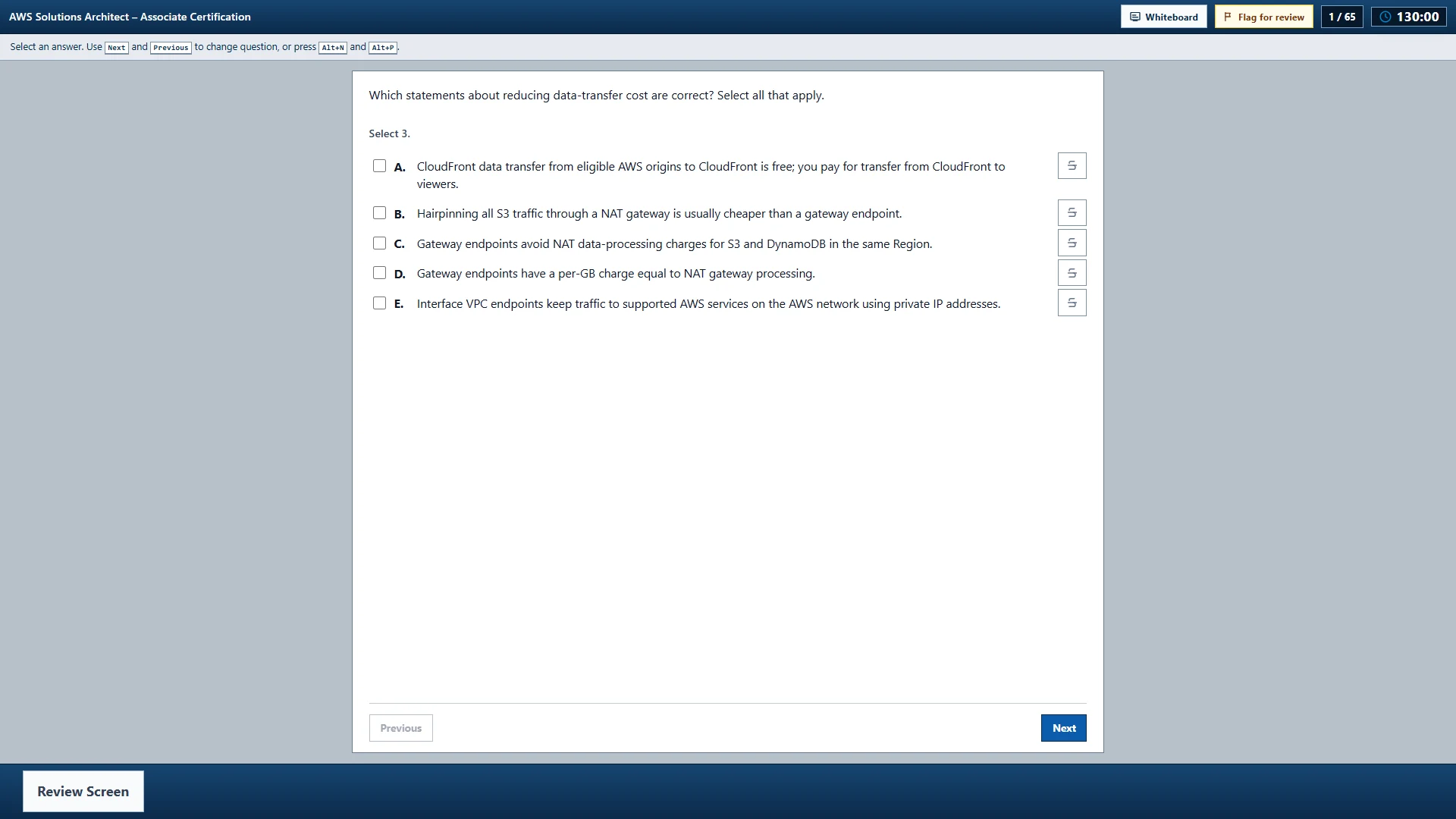
Exam-room controlsAfter check-in you practice the test screen. The clock runs. Previous and Next move between questions.
- Flag Mark a question you want to come back to. It stays marked when you open Review.
- Strikethrough Cross out a choice you have ruled out. A line goes through that answer.
- Whiteboard A scratch pad for notes. Open it, write or draw, then close it and continue.
- Review Check your answers, with a five-minute warning. Incomplete and flagged questions are marked, and you can jump back to one.
Desktop only. Included with full access on AWS, Cisco, CompTIA, Microsoft, and GitHub exams.
Example photos are shown. No photo of yours is taken or saved. Testimea is not affiliated with Pearson VUE.
Rehearse it before the real sitting
Exam day is included with full access. It is not in the free sample.