Pearson VUE Exam Day: Test Center vs Online Proctored (OnVUE) – A Practical Guide
Most big IT certification vendors, including AWS, Microsoft, CompTIA and Cisco, deliver their exams through Pearson VUE. You can usually sit the exam at a test center or online with OnVUE, Pearson VUE’s online proctored system. The content is the same either way, but the check-in, rules and risks differ. This guide uses only Pearson VUE’s documentation and the vendors’ official policies.
The vendor sets many policies, so details differ between programs. Always read your confirmation email and your vendor’s policy page.
Booking, rescheduling and cancellation
You normally book through your vendor’s certification account, which passes you to Pearson VUE to pick test center or online, a date and a time. The confirmation email then lists the rules for that exam. Read all of it.
Rescheduling and cancellation windows are not the same for every vendor. Here are three examples from official pages:
- AWS: you can reschedule up to 24 hours before your exam, and each appointment can be rescheduled only twice. If you cancel more than 24 hours ahead, you get a refund. Inside the 24-hour window you can’t cancel or reschedule, and the fee is forfeited. (AWS Before Testing)
- Microsoft: reschedule or cancel at least 24 hours before the exam, or you forfeit the fee. (Microsoft policy)
- CompTIA: test center appointments must be changed at least 24 hours (one full business day) ahead. Online proctored appointments can be rescheduled or cancelled any time up to the scheduled start. (CompTIA testing policies)
ID requirements
In both delivery modes, your ID must be valid, original (not a copy) and government-issued, with a recognizable photo. The name on it must match the name on your booking. For OnVUE, Pearson VUE lists accepted IDs including a passport, a plastic driver’s license and a national or EU ID card. Expired, digital, damaged or copied IDs are rejected (OnVUE requirements).
The number of IDs can depend on the delivery mode. AWS, for example, asks for one primary ID online but two IDs at a test center: either two primary IDs, or one primary and one secondary (AWS During Testing). Fix any mismatch between your account name and your ID days before the exam.
Exam day, step by step
At a test center
Per Pearson VUE’s check-in guide and Candidate Rules Agreement:
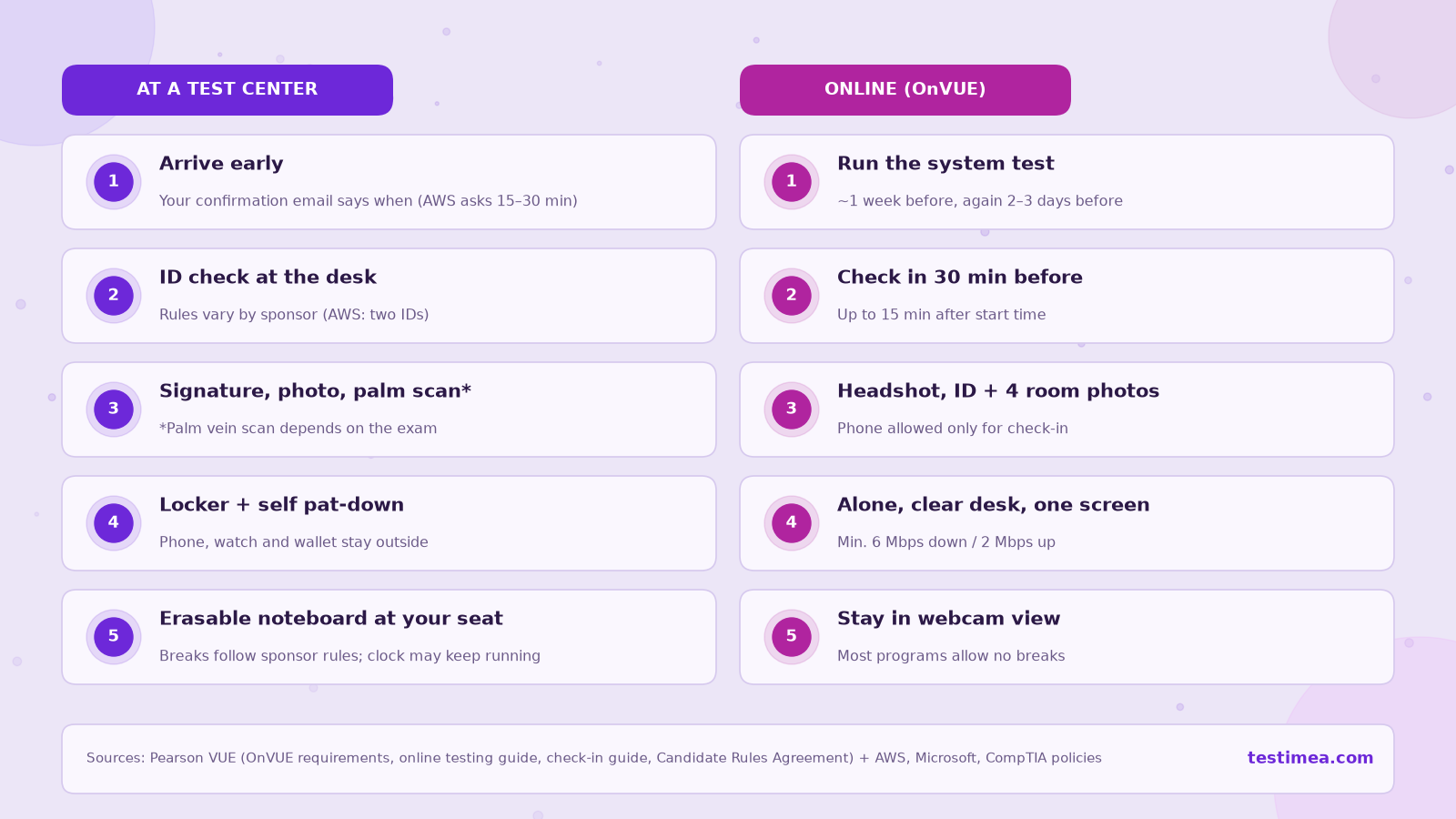
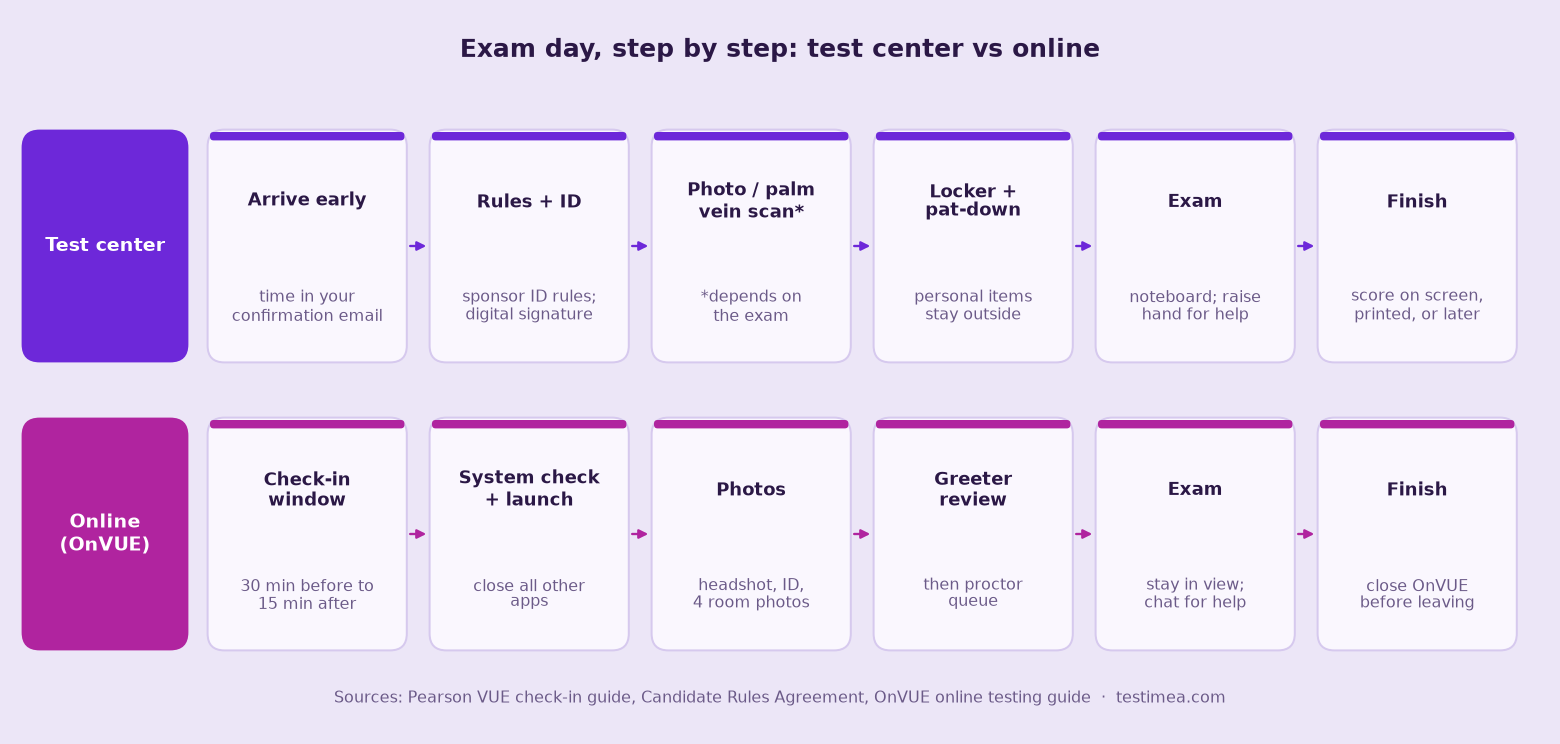
- Arrive early. Your confirmation email tells you how early to come. AWS asks for 15–30 minutes before the appointment.
- Check in. The administrator confirms your exam, you accept the testing rules, your ID is checked, and you sign on a digital signature pad.
- Biometrics. Depending on the exam, you may have to scan your palm (a near-infrared palm vein scan). You’re also photographed. CompTIA, for example, requires the photo, and it appears on the printed score report.
- Lockers and screening. Phones, watches, wallets, bags and other personal items go into a locker. You’ll turn out your pockets, pat yourself down and show your sleeves and ears. Glasses are inspected, and a handheld scanner may be used.
- At the workstation. You get an erasable noteboard, but you can’t write on it until the exam has started. If you need help, raise your hand. Staff can’t answer questions about exam content.
Breaks: the vendor sets the break policy. If you take an unscheduled break, the exam clock keeps running. To return to the room you show your ID or repeat the palm scan. AWS has no scheduled breaks but allows unscheduled ones at test centers. CompTIA exams have no scheduled breaks in either mode. Microsoft is an exception: all its exams except Microsoft Office Specialist (MOS) have 5 minutes built in for unscheduled breaks, online and at test centers. The clock keeps running during a break, and you can’t go back to questions you saw before it. Online, you may leave the camera view only after starting the break in the exam interface (Microsoft exam duration and experience).
Online with OnVUE
Before exam day: run Pearson VUE’s system test on the same computer and network you’ll use for the exam. Pearson’s online testing guide suggests doing it about a week before, then again two to three days before. The minimum requirements (OnVUE requirements) are:
- Windows 10 or macOS 14 or newer
- A working webcam, microphone and speaker, with no headphones (unless your program makes an exception)
- Only one display
- A stable internet connection of at least 6 Mbps download and 2 Mbps upload
VPNs, corporate or public networks and virtual machines are prohibited, and Pearson advises against employer-issued computers.
Check-in: you can start 30 minutes before your appointment and up to 15 minutes after it. AWS warns that if you’re more than 15 minutes late, or your system test fails, you lose the exam fee. During check-in you take a headshot, photos of your ID, and four photos of your testing space. Your phone works best for this, then it must stay out of arm’s reach. A greeter reviews the photos and may ask you to show your ears, roll up your sleeves, empty your pockets or do a 360° room scan.
The room and desk: you need a quiet, enclosed space with nobody else in it at any point. No one may be able to see your screen. Clear the desk of everything except the computer, pre-approved items, and a drink in an unmarked container. Wipe any wall whiteboards. Some programs offer a built-in digital whiteboard.
What can end an online exam:
- leaving the webcam’s view without a break started in the exam interface where your program allows one (most programs allow no breaks, and AWS explicitly forbids standing up or leaving the camera view, even to go to the restroom)
- speaking or reading questions aloud
- someone else entering the room
- touching your phone without the proctor’s permission
- moving out of camera view before you’ve properly closed OnVUE at the end
Connectivity problems: the in-exam chat reaches a proctor, but proctors can’t pause or extend your exam, and they can’t troubleshoot your device or network. If OnVUE freezes or disconnects, close it and relaunch it from your downloads folder. If you couldn’t finish for any reason other than running out of time, contact your vendor’s customer service.
Results
Depending on the exam, Pearson VUE may show your score on screen, give you a printed report or completion notice, or the result comes later. AWS publishes results within 5 business days in your AWS Certification account. Microsoft’s exam FAQ notes that exams with labs may not show a result immediately: it can take 30 minutes or longer, and the score should appear in your certification dashboard within 24 hours of the exam.
Test center vs online: pros and cons
| Test center | Online (OnVUE) | |
|---|---|---|
| Equipment risk | Center provides and maintains the computer | Your hardware, OS and network must pass the requirements |
| Environment | Controlled, monitored room | You must guarantee a private, quiet room for the whole exam |
| Breaks | Set by the vendor; unscheduled breaks possible with the clock running | Most programs: none, and you must stay in camera view |
| Scratch paper | Erasable noteboard | Built-in digital whiteboard only if your program allows it |
| ID | Some vendors require two (e.g., AWS) | Often one primary ID (e.g., AWS) |
| Travel and scheduling | Travel needed; limited by center opening hours | No travel; AWS lists English proctoring 24×7 |
| Privacy | Photo, signature, possibly palm scan | Webcam and audio recording of you and your room |
Exam-day checklist
- The name on your vendor account matches your ID exactly; the ID is valid and original (and you have two IDs if your vendor requires them at a test center)
- You’ve read the confirmation email, including arrival time, ID rules and reschedule deadlines
- Test center: route planned, extra time allowed, as few personal items as possible
- Online: system test passed again on the same device and network, computer restarted, other applications closed, VPN off, extra monitors unplugged
- Online: desk cleared, door closed, household told not to come in, phone charged for check-in and then placed out of reach
- Restroom and drink taken care of beforehand, since you may not get a break
- You’ve practised at least one full-length exam under timed conditions
Practise under real timing first
Don’t let the timer be a surprise. Before you book, do full-length timed practice runs so the pacing feels normal. Pick an exam from the Testimea practice exams catalogue. For example, try the AWS Cloud Practitioner practice exam (or its trial), or the CompTIA Security+ practice exam (or its trial). For more study strategy, see our exam preparation tips.
FAQ
Can I take a break during an online exam?
It depends on the vendor. Most programs don’t allow online breaks, and AWS forbids leaving the camera view for any reason. Microsoft is an exception: you can start an unscheduled break in the exam interface and leave the camera view during it. Five minutes are built into the exam for this, but the clock keeps running (Microsoft policy).
How early can I check in online?
Thirty minutes before your appointment, and up to 15 minutes after it.
Can I use my phone?
Only to take the check-in photos, or if the proctor contacts you or gives permission. For the rest of the exam it must stay out of arm’s reach.
What if my internet drops?
Relaunch OnVUE from your downloads folder and use the chat. If you couldn’t finish, contact your vendor’s customer service. Proctors can’t add time to your exam.
Which mode is better?
If you have a reliable computer, a private room and a fast connection, online is convenient. If any of those is uncertain, or you think you might need a break, a test center is the safer choice.